Lesson 7: Odometry: where am I on the field?
Goal: your robot knows where it is on the field. Its autonomous drives to field points (“go to x -30, y -30, facing 45 degrees”) instead of distances, and keeps correcting on the way. TeleOp starts where autonomous ended.
You need: lessons 1 to 6 (the last one: Your first autonomous, with the
Drive Tuner done). A mecanum drive (driveTo drives sideways). An odometry device (section 2). A
tape measure, some tape, and about 5 ft of clear floor. About an hour and a half, most of it mounting.
The code: the odometry robot, examples/.../odometrybot:
Robot.java,
Tunables.java,
Controls.java,
autos/ToTheGoal.java
and OdometryTuner.java.
It is the lesson robot’s drive and intake, plus one odometry line.
Reference: Odometry.
1. Why odometry
Section titled “1. Why odometry”Your lesson 6 autonomous says “drive 24 inches forward”. The robot only knows how far its drive wheels turned. But drive wheels slip: they spin when another robot pushes you, and skid when the robot speeds up. After a bump, every later step is off, and the robot does not know it.
Odometry measures where the robot really went. Small unpowered wheels, called pods, are pressed lightly onto the tiles. They carry no weight and drive nothing, so they do not slip: they just roll and count. One pod counts forward and back, one counts sideways, and a turn sensor (an IMU) counts turning. Add up every small move, many times a second, and the robot knows its pose: where it is (x and y, in inches) and which way it faces (the heading, in degrees).
Why not AprilTags this season? In BIOBUZZ the tags are on the HIVE cells, and the cells move. A tag tells you where you are compared with the tag, not with the field. So this season, odometry tells you where you are; the camera is for aiming.
The frame (which way the numbers go). This is new: in lesson 6, s.start("...", 0) gave only a
heading. Now the robot also needs a place on the field, as two numbers, x and y. Stand at your
drivers’ wall and look at the field:
far wall +-----------------------------------+ | y + | | ^ | | x - <--------+--------> x + | (0, 0) = the middle of the field | v | | y - | +-----------------------------------+ your drivers' wall (you)x is inches to the right, y is inches away from you. Heading 0 = facing away from you, and counterclockwise is + (90 = facing left).
Here is the BIOBUZZ field from above, with this lesson’s three points:
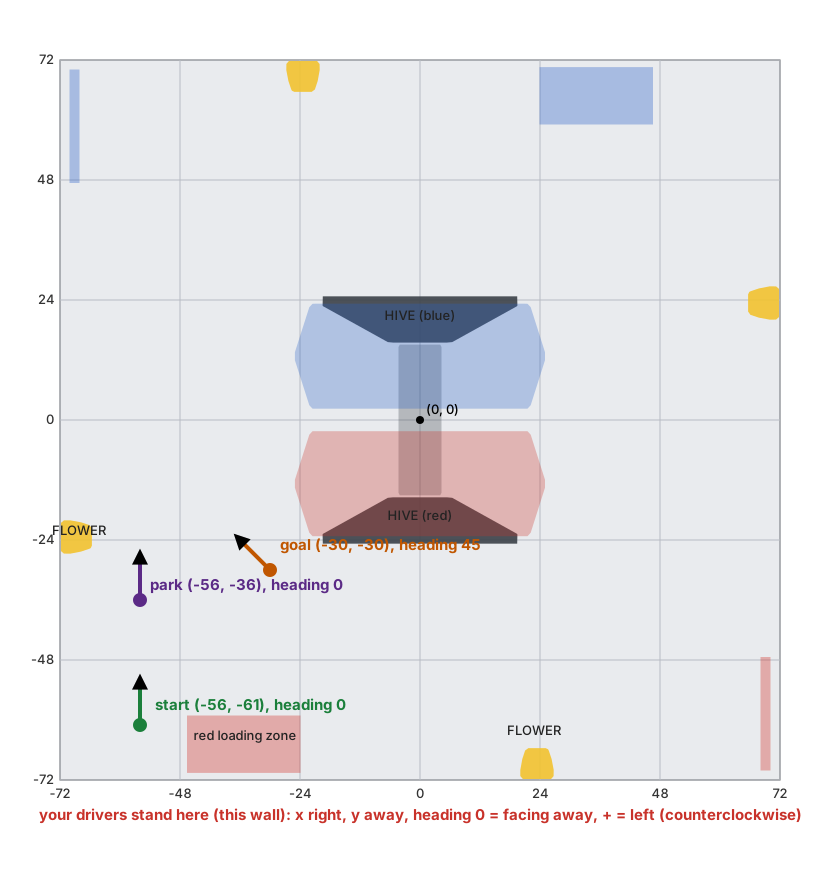
How to read it:
- The field is about 144 in (12 ft) square. (0, 0) is the middle. x and y both go from -72 to 72. A tile is 24 in, so the grey lines are every 24 in.
- The start, (-56, -61): the walls really stand about 141 in apart, so your wall is about 70.5 in from the middle. A robot 18 in long, touching your wall, has its centre 9 in from the wall: 70.5 - 9 = 61.5 in from the middle. So y -61 means “back against your wall”. x -56 puts it in the left corner tile (that tile’s middle is at x -60).
- The goal, (-30, -30): on your half, just in front of (on your side of) the left corner of the red HIVE.
- The park, (-56, -36): back in the left column, one and a half tiles in front of your wall.
- This map is drawn from the RED wall. From the BLUE wall the numbers are the same: BIOBUZZ’s field is turned half a turn between the alliances, so each team’s own wall is y -72.
The heading is which way the robot’s front points, in degrees:
| Heading | The robot faces |
|---|---|
| 0 | straight away from you (toward the far wall) |
| 45 | turned 45 degrees to the left of “away”: toward the far left corner |
| 90 | left |
| 180 | toward you |
| -90 | right |
Two new words. A field point is a place on the field written as x and y (and, for driveTo,
a heading). The start spot is the field point where you put the robot before START. You write it
in s.start(note, x, y, heading): the same start as lesson 6, with x and y added (section 6, and
the autonomous builder).
2. Which one to buy
Section titled “2. Which one to buy”| Choice | What it is | Parts and price (checked 2026-10-21) |
|---|---|---|
| goBILDA Pinpoint + 2 pods (the lesson’s choice) | a small odometry computer with its own IMU; two pods plug into it; it plugs into an I2C port | Pinpoint Odometry Computer V2, goBILDA 3110-0002-0002, $79.99, in stock on goBILDA’s site. Two 4-bar odometry pods, goBILDA 3110-0001-0002, about $99.99 each (that price is from search results, not checked on goBILDA’s page: check it before you order) |
| SparkFun OTOS | an optical sensor under the robot that watches the floor, like a computer mouse. No pods | SparkFun SEN-24904, $84.95, in stock on SparkFun’s site |
| Dead wheels | three pods (or two and the Control Hub’s IMU), each plugged into a motor port’s encoder connector. No extra computer | the pods only; but they use three (or two) encoder ports |
Two words from the table:
- I2C port: the small 4-pin ports on the Control Hub (labelled I2C 0 to 3). Sensors that send numbers, like the Pinpoint and the OTOS, plug in there.
- 4-bar and swingarm pods: goBILDA sells two pod designs. Both are a small wheel on a spring that
presses it onto the tiles; they differ in how the wheel is held, and in how many encoder counts one
mm of rolling gives. The library expects 4-bar pods (the default). Swingarm pods need
.podsSwingarm()in the odometry line (section 4).
Why the lesson uses a Pinpoint: it does the math itself about 1500 times a second, and the robot reads the answer once per loop. Your loop speed does not change how good the pose is, and it uses no encoder ports.
3. Mount it, wire it, name it
Section titled “3. Mount it, wire it, name it”- Mount the two pods under the robot, springs pressing the wheels onto the tiles. One rolls forward/back (the X pod), one rolls sideways (the Y pod). They can sit anywhere; section 5 measures where.
- Mount the Pinpoint flat, anywhere on the robot (goBILDA’s guide shows the details).
- Plug the X pod into the Pinpoint’s X port and the Y pod into its Y port. Why it matters: the Pinpoint treats X as forward. Swapped, the robot thinks forward is sideways.
- Plug the Pinpoint into an I2C port on the Control Hub. Port 0 already has the hub’s own IMU, so port 1 is a good choice.
- Add it to the robot configuration on the Driver Station: Configure Robot, edit your
configuration, Control Hub, the I2C bus you used (e.g. I2C Bus 1), Add. Choose the type
goBILDA® Pinpoint Odometry Computer and name it
pinpoint. Save, and restart the robot.
An OTOS goes on an I2C port the same way: type SparkFun OTOS, name otos. Mount it 10 to 12 mm
above the tiles. Dead wheels: each pod’s encoder cable goes into a motor port’s encoder connector, and
the name is that motor port’s configuration name (odometry module).
4. One line in Robot.java
Section titled “4. One line in Robot.java”This is the odometry robot’s Robot.java. The odometry line is the only new thing:
drive(Drive.mecanum("front_left", "front_right", "back_left", "back_right") .motor("gobilda-5203-312").wheelMm(104) .imu("imu", LogoFacingDirection.UP, UsbFacingDirection.FORWARD));// The Pinpoint on an I2C port, named "pinpoint" in the configuration. The offsets: the forward pod// 84 mm RIGHT of the centre (-84), the sideways pod 168 mm BEHIND it (-168). The Odometry Tuner// measures them.odometry(Odometry.pinpoint("pinpoint").offsetsMm(-84, -168));intake = add(Intake.motor("intake"));In your own Robot.java, add two lines:
-
With the other
importlines at the top:import com.crossbotics.ftchelper.robot.Odometry; -
In
define(), right after yourdrive(...)line. Start with0, 0: the tuner measures the real numbers in section 5.odometry(Odometry.pinpoint("pinpoint").offsetsMm(0, 0));
Odometry.pinpoint("pinpoint"): a Pinpoint, namedpinpointin the configuration (the name must match exactly)..offsetsMm(first, second): where the pods sit, in millimetres, from the robot’s centre (the point it turns around). Why the library needs them: when the robot turns in place, a pod away from the centre rolls too, and the library must take that roll away.- The first number: how far left of the centre the X pod is (right = negative).
- The second number: how far forward of the centre the Y pod is (behind = negative).
- Careful, two different x’s. The field’s x (section 1) goes to the right. The Pinpoint’s X pod is the pod that measures forward (goBILDA’s name, from the Pinpoint’s own frame). They are not the same direction. In the odometry line, “X” and “Y” always mean the pods.
- An OTOS:
odometry(Odometry.otos("otos").mountIn(forward, left, heading));. Dead wheels:Odometry.threeWheels(...)ortwoWheels(...). All of them: the odometry module.
And one section in Tunables.java: put it inside public class Tunables { ... }, next to the
Drive section (a section is one public static class inside it):
public static class Odometry { public static boolean checked = false;}checked is the same idea as Tunables.Drive.calibrated in lesson 6: a switch you flip by hand
after the tuner’s last test passes. Why: a pod that counts the wrong way would send the robot the
wrong way at speed. Until checked is true, the driveTo steps of section 6 do nothing on the robot.
Build and run your TeleOp. The Driver Station now shows a Pose line. Push the robot forward by hand:
y should go up. Push it left: x should go down. (Wrong? Section 5 fixes it.)
5. The Odometry Tuner
Section titled “5. The Odometry Tuner”The Odometry Tuner checks which way each pod counts and measures the offsets. Make a new Java file
OdometryTuner.java next to Robot.java in your teamcode folder (how to make a file),
and replace everything in it with this whole file (like the Drive Tuner in lesson 6, it only hands
the tuner your robot):
package org.firstinspires.ftc.teamcode;
import com.qualcomm.robotcore.eventloop.opmode.TeleOp;import com.crossbotics.ftchelper.finders.OdometryTunerOpMode;import com.crossbotics.ftchelper.robot.RobotDefinition;
@TeleOp(name = "Odometry Tuner", group = "Finders")public class OdometryTuner extends OdometryTunerOpMode {    @Override    protected RobotDefinition robot() {        return new Robot();   // your Robot.java, with its odometry(...) line    }}
The odometry robot’s copy: OdometryTuner.java. Put a 48 in strip of tape on the floor, and a tape mark at its start. Run the tuner. The sticks drive slowly (30%); you can also push the robot by hand. Choose a test with the D-pad, start it with A, end it with B. Each test starts the pose at 0.
| Test | You do | It tells you |
|---|---|---|
| 1 Forward 48 in | drive or push the robot 48 in straight forward along the tape, then B | “Forward OK” and how far off it is, or that the X pod is reversed |
| 2 Left 24 in | drive or push it 24 in straight to its left, then B | “Left OK”, or that the Y pod is reversed |
| 3 Spin 3+ turns | turn it in place at least 3 times (right stick), then B | the offsets: the numbers to change in your odometry line |
| 4 Loop and back | start on the tape mark, drive anywhere, come back onto the mark facing the same way, then B | within 1 in and 2 degrees: the odometry is good |
What to copy, in this order:
-
Forward and Left say “counted BACKWARD” (or RIGHT)? Add that pod to
.reversed(...)in the odometry line, e.g.odometry(Odometry.pinpoint("pinpoint").offsetsMm(0, 0).reversed("x"));("y"for the Y pod; both:.reversed("x", "y")). Rebuild and run them again until both say OK. “More than 2% off”: check that the pods are 4-bar pods (swingarm pods need.podsSwingarm()) and that the tape is 48 in. “Was it really 48 in?”: it measured more than 10% off, which is a mistake in the test (the robot did not go 48 in), not the pods. Measure along the tape and run it again. A name in.reversed(...)that is not a pod (a Pinpoint’s pods are"x"and"y") stops INIT with a message, so a typo cannot leave a pod counting backward. -
Spin measures the turn with the Pinpoint’s own heading, and shows the numbers to change, like
Robot.java: in the odometry(...) line, .offsetsMm(-84.2, -167.5). Put those numbers in your own odometry line, in place of the0, 0. Everything else in the line (a.reversed(...), the pod type) stays as you wrote it. Rebuild. -
Loop. When it says “Back on the mark … the odometry is good”, it shows
Tunables.Odometry: checked = true. Set it inTunables.java:public static boolean checked = true;Off by more? Run Forward, Left and Spin again, copy their lines, rebuild, try Loop again.
The lines are also saved in finder-results.txt on the Control Hub when you press STOP
(the results file). An OTOS’s Forward test gives
Tunables.Odometry: linearScalar = ... to copy instead, and its turn scale is
measured by hand.
6. Drive to field points
Section titled “6. Drive to field points”This is the odometry robot’s autonomous, autos/ToTheGoal.java:
@Autonomous(name = "Odometry Bot To the Goal", group = "Examples", preselectTeleOp = "Odometry Bot TeleOp")@Disabledpublic class ToTheGoal extends Auto<Robot> {    @Override    protected boolean mirrorForRed() {        return false;   // BIOBUZZ's field is turned half a turn between the alliances    }
@Override protected void steps(Steps s, Robot robot) { s.start("Against our wall, in the left corner tile, facing the field", -56, -61, 0) .run("Intake on", robot.intake::in) .driveTo("To the goal", Tunables.Auto.goalX, Tunables.Auto.goalY, Tunables.Auto.goalHeading, 0.6) .run("Intake off", robot.intake::stop) .parkWithSeconds(4) .driveTo("Park", Tunables.Auto.parkX, Tunables.Auto.parkY, 0, 0.7); }}-
start("...", -56, -61, 0): the note for the drive team, and the start spot: x -56 (left of the centre line), y -61 (against your wall), heading 0 (facing away). Lesson 6’sstart(note, heading)had no spot;start(note, x, y, heading)adds it. With odometry the spot matters: the pose starts there after START. Why: the points below are field places, so the robot must know where it starts. Find a spot by dragging the robot on the simulator’s map before START (the line to copy is under the map, how). -
driveTo("To the goal", x, y, heading, 0.6): drive to that field point and turn to that heading at the same time, at most 60% power. It checks the pose every loop and keeps correcting. In the last 8 inches it slows down in proportion to the distance left, so it stops on the point. It is done when it is within the tolerance (“close enough”: 1 inch unless you give another number) and within 2 degrees of the heading, for 3 loops in a row. While the heading is still off, it turns with at least 0.08 power, so a weak turn cannot stop just short. -
driveTo("Park", ..., 0, 0.7): to the park point, facing away from you again. -
The points live in
Tunables.Auto, like lesson 6’s distances, so you can change them in the tuning menu without a rebuild:public static class Auto {public static double goalX = -30, goalY = -30, goalHeading = 45;public static double parkX = -56, parkY = -36;}
Why driveTo and not move? Three reasons:
- It corrects bumps and slip. A
movecounts the drive wheels. If a partner bumps you, the move still “finishes”, in the wrong place.driveTosees the real pose, so it drives back on course and ends at the point. - It ends at a field place. “Go to (-30, -30)” is the same spot from any start. Change one step
and the next ones still go to the same places. With
move, every later step shifts too. - It drives and turns at once, straight at the point, even sideways.
Your own file, whole. Make a new Java file ToTheGoal.java in your autos folder, and replace
everything in it with this. No intake? Delete the two run(...) lines.
package org.firstinspires.ftc.teamcode.autos;
import org.firstinspires.ftc.teamcode.Robot;import org.firstinspires.ftc.teamcode.Tunables;import com.crossbotics.ftchelper.robot.Auto;import com.crossbotics.ftchelper.robot.Steps;import com.qualcomm.robotcore.eventloop.opmode.Autonomous;
// preselectTeleOp: your TeleOp's name, exactly as in @TeleOp(name = ...) in Controls.java@Autonomous(name = "To the Goal", group = "Autos", preselectTeleOp = "Quick Start TeleOp")public class ToTheGoal extends Auto<Robot> {
    @Override    protected boolean mirrorForRed() {        return false;   // BIOBUZZ's field is turned half a turn between the alliances    }
    @Override    protected void steps(Steps s, Robot robot) {        s.start("Against our wall, in the left corner tile, facing the field", -56, -61, 0)         .run("Intake on", robot.intake::in)         .driveTo("To the goal", Tunables.Auto.goalX, Tunables.Auto.goalY, Tunables.Auto.goalHeading, 0.6)         .run("Intake off", robot.intake::stop)         .parkWithSeconds(4)         .driveTo("Park", Tunables.Auto.parkX, Tunables.Auto.parkY, 0, 0.7);    }}
And add the five points to the Auto section of your Tunables.java (keep lesson 6’s numbers too):
public static double goalX = -30, goalY = -30, goalHeading = 45;public static double parkX = -56, parkY = -36;Before the tuner is done (checked = false), each driveTo does nothing on the robot, and the
report says why: To the goal: skipped: Tunables.Odometry.checked is false (run the Odometry Tuner first).
In INIT, the Driver Station shows Odometry: Pinpoint ready, or a warning with the reason, like
Odometry (Pinpoint): X pod not found: check its cable. Look for it before START: a missing pod is
much easier to fix before the match than after.
When a driveTo cannot finish, it stops and the report shows a word:
STALLED: the robot is stuck. Far from the point: the same rule as amove. In the last 8 inches (where it is slow on purpose): less than 0.1 in closer in 2 seconds.TIMED_OUT: it took more than 10 seconds.NO_ODOMETRY: the odometry stopped working (a pod or I2C cable). A short glitch (one bad reading) is fine: the robot holds still and waits up to 0.2 s. If the odometry is still not ready after that, the step ends.
Then the autonomous goes on with its next steps, from wherever the robot is. So put a mechanism
action that needs the right place (score, drop) right after the driveTo that gets it there, and
read the report after every practice run: a driveTo that did not say done means the steps after it
started from the wrong place.
RED: with mirrorForRed() false (BIOBUZZ), RED uses the same numbers, seen from the red wall. On a
mirrored field (mirrorForRed() true), RED flips x and the heading. More, and the tolerance option
(driveTo(label, x, y, heading, power, inches)):
the autonomous builder.
7. TeleOp starts where autonomous ended
Section titled “7. TeleOp starts where autonomous ended”You write nothing for this:
- When autonomous ends, its pose (where the robot is, and which way it faces) goes to TeleOp.
- TeleOp’s INIT starts the odometry there (if autonomous ran in the last 5 minutes). So the
Poseline carries on from autonomous. A Pinpoint is still calibrating right after INIT: the pose is kept and written to it as soon as it is ready. - Field-centric “forward” comes from the odometry’s heading. Holding BACK (with field-centric on) makes “forward” the way the robot faces now, and keeps x and y.
To show the pose your own way, add one line inside buttons(...) in Controls.java:
show("Where", robot::pose); // e.g. "(-30.0 in, -30.0 in, 45.0 deg)"robot.pose() is the pose now: robot.pose().x, .y and .headingDeg. The odometry robot’s
Controls.java
shows only x and y, with no decimals.
Try it in the simulator
Section titled “Try it in the simulator”From the ftc-helper-lib folder, write a simulator robot file from the odometry robot’s Robot.java,
then start the simulator with the library’s examples:
./gradlew :sim:fromRobot -PteamCode=none -ProbotClass=com.crossbotics.ftchelper.examples.odometrybot.Robot -Pout=build/odometrybot.properties./gradlew :sim:run -PteamCode=none -Probot=build/odometrybot.propertiesOpen http://localhost:8780, choose “Odometry Bot To the Goal”, choose RED in the INIT menu,
INIT, START. Watch it drive diagonally to the goal while it turns to 45 degrees, then park.
(The simulator runs driveTo even with checked = false.) When it ends, choose “Odometry Bot TeleOp”:
the pose carries on from where autonomous stopped.
Two places show where the robot is:
- The Driver Station’s
Poseline: where the odometry thinks the robot is, in this lesson’s frame (from your own wall). - The simulator page’s line under the field map (Control Hub panel, Robot tab): where the robot really is. It uses the field seen from the red wall (the map is drawn with red at the bottom). On RED the two use the same numbers. On BLUE the x and y signs are flipped, and the heading differs by 180.
The 3D view starts off: tick “Show” to turn it on. The field from above is always in the Control Hub’s Robot tab.
Then see what a badly tuned odometry does. Add this line at the end of build/odometrybot.properties
and run it again (RED):
odometry.scaleError = 0.05 # the pods measure 5% too farAt the goal, the Pose line says about (-30, -30), but the page’s line shows the robot about 2 in
short of it, nearer the start. The odometry measured every inch 5% too long, so it “arrived” early.
Odometry can only be as good as its tuning: on the real robot, the tuner’s Forward test finds this
kind of error. odometry.driftDegPerMin makes the heading creep instead
(simulator lines). Delete the line when you are done.
Your own robot. From the ftc-helper-lib folder:
./gradlew :sim:fromRobot -PteamCode=../TeamCode./gradlew :sim:run -PteamCode=../TeamCode:sim:fromRobot writes the odometry lines into your simulator/robot.properties from the odometry
line in Robot.java. Choose “To the Goal”, INIT, START, and read the report at the end.
You can also run your “Odometry Tuner” in the simulator, to learn the tests before you try them on the robot. Spin and Loop work with the sticks. Forward: use the page’s “48 in forward” push button (Robot tab). Left: drive left with the left stick (there is no push button to the left).
Check it on the robot
Section titled “Check it on the robot”- Push the robot by hand with the TeleOp running: forward = y up, left = x down, turning left = heading up. If not, the tuner’s Forward and Left tests first.
- The tuner: Forward, Left, Spin, copy, rebuild, then Loop until it passes. Set
checked = true. - In INIT of “To the Goal”, choose the PRACTICE profile. Set
Tunables.Drive.practiceMaxPowerlow (0.4) for the first runs. - Put the robot exactly on the start spot. In INIT, check for
Odometry: Pinpoint ready. Keep a hand on STOP. Run it. - Measure where it ended against the point you wrote (
goalX,goalY): within about an inch? Then run it again and gently push the robot sideways during the drive: it should come back on course. - Then run TeleOp: the
Poseline should carry on from where autonomous ended.
If something goes wrong
Section titled “If something goes wrong”| What you see | Why, and what to do |
|---|---|
Pinpoint: X pod not found: check its cable (or Y, or both), or in an autonomous’s INIT Odometry (Pinpoint): X pod not found: check its cable |
a pod cable is out of the Pinpoint |
Pinpoint: calibrating (keep the robot still) does not go away |
the robot moved in INIT: keep it still and INIT again |
INIT stops: No GoBildaPinpointDriver named "pinpoint" in the active robot configuration |
the name in the configuration must match Robot.java exactly, with the Pinpoint type: section 3, step 5 |
skipped: Tunables.Odometry.checked is false in the report |
the tuner’s Loop test, then checked = true |
| The pose goes the wrong way | a pod is reversed: Forward and Left tests, then .reversed("x") or ("y") |
| The pose drifts when the robot only turns in place | the offsets: the Spin test |
| x and y look swapped | the X and Y pods are in each other’s ports |
The report says STALLED after a driveTo |
the robot was stuck (pushed against something, or a point it cannot reach). The next steps still ran |
The report says TIMED_OUT after a driveTo |
it did not arrive in 10 s: a point too far for one step, or the heading never settled (turnKp) |
The report says NO_ODOMETRY |
the odometry stopped working during a driveTo for more than 0.2 s (a pod or I2C cable): the robot stopped, and the next steps still ran. Read the warning on top |
The report says skipped for a driveTo |
checked is still false (the row above), or there was no time left before park |
| It drives to the mirror spot on RED | mirrorForRed() must be false on BIOBUZZ’s field |
INIT stops: driveTo(...) needs a mecanum drive |
driveTo drives sideways: a tank robot uses turnTo and move. It stops at INIT, not in the middle of the match |
INIT stops: odometry .reversed("...") |
a name in .reversed(...) that is not a pod: a Pinpoint’s pods are "x" and "y" |
| It circles the point or stops just short | Tunables.Drive.turnKp/turnKd, or moveMinPower (lesson 6) |
| TeleOp’s field-centric is wrong after autonomous | the heading in s.start(...) is wrong |
The main track is lessons 1 to 6, plus the lessons your robot needs. From here:
-
Lesson 8: Paths with Pedro Pathing (optional): smooth curves and lines, one after another.
-
Lesson 9: A shooter, a camera and a turret: for robots that shoot.
-
The odometry module: every kind (OTOS, dead wheels), every setting, the frame.
-
The autonomous builder: everything an autonomous can do.
-
The finders: measure every number instead of guessing.
-
The tutorials page: the under-the-hood tutorials.