Lesson 8: Paths with Pedro Pathing (optional)
Goal: your autonomous drives along paths: smooth curves and lines, one after another, fast, and correcting all the way. Pedro Pathing does the driving; you write the path in the same field numbers as lesson 7.
You need:
- A mecanum drive.
- Odometry: a goBILDA Pinpoint, a SparkFun OTOS, or dead-wheel pods, set up and checked in
lesson 7 (
Tunables.Odometry.checkedistrue). - About 5 by 8 ft of clear floor (a field is best).
- About two hours: about one hour for Pedro’s tuning, the rest to set up and try paths.
Why odometry is required. Pedro steers by where the robot really is on the field, every loop. Only odometry tells it that: a goBILDA Pinpoint, a SparkFun OTOS, or dead-wheel pods, set up and checked in lesson 7. The drive wheels’ encoders are not enough (they slip). Without an
odometry(...)line, INIT stops withfollower(...) needs an odometry(...) line too, and untilTunables.Odometry.checkedistrueeveryfollowstep is skipped.
Why mecanum only. Pedro corrects the robot’s position by sliding it sideways, so it needs wheels that can strafe. Pedro has no tank (two-side) drive. On a tank drive the library stops INIT with a clear message; use odometry with
turnToandmoveinstead (lesson 7 and the autonomous builder).driveToneeds mecanum too. A swerve drive can work through Pedro’s ownSwervedrivetrain (see the escape hatches); this is not tested.
This lesson is optional. Lesson 7’s driveTo already drives to field points. Many teams never
need more. Read section 1, then decide.
The code: the Pedro robot, examples/.../pedrobot:
Robot.java,
PedroConstants.java,
Tunables.java and
autos/CurveToTheGoal.java.
It is lesson 7’s robot plus one line.
Reference: the pedro module.
1. What a path follower does, and do you need one?
Section titled “1. What a path follower does, and do you need one?”driveTo is “go to that spot”. The robot points itself at the spot and drives there. On the way
it corrects, but it does not care how it gets there. To go around something, you add a spot in
between, and the robot slows down and stops at each one.
A path follower is “drive along this road”. You draw the road: a line or a smooth curve. The robot drives along it without stopping, at full speed where it can, and brakes at the end so it stops on the point. If it is pushed off the road, it steers back onto it.
Pedro Pathing is a free path follower that many FTC teams use (pedropathing.com). This library connects it to your five files, so you write paths in your own field numbers.
driveTo (lesson 7) |
Pedro (this lesson) | |
|---|---|---|
| How you say where | a point and a heading | a road: lines and curves |
| Around a field element | a point in between (it stops there) | a curve (no stop) |
| Speed | good | faster, with smooth braking |
| Extra setup | none | an add-on, and Pedro’s own tuning (about an hour of the lesson’s two) |
Our advice: start with driveTo. Change to Pedro when you want curves, or when stopping at
every point costs you time in autonomous. You can use both in one autonomous.
2. Words you will meet
Section titled “2. Words you will meet”| Word | What it means |
|---|---|
| path | the road the robot follows, from a start point to an end point |
| line | a straight path between two points |
| curve | a smooth bent path. Pedro uses Bezier curves (say “bez-ee-ay”) |
| control point | a point that pulls a curve toward it, like a magnet. The robot does not drive through it |
| part | one line or curve. A path can have several parts, driven with no stop between them |
| follower | the code that drives the robot along the path (Pedro’s Follower) |
| Foresight | the name of Pedro’s way of driving. It looks ahead to know when to brake |
| hold | after the path, keep the robot on the end point and push back if it is bumped |
A curve with one control point:
start (-48, -50) ----. `. (-44, -36) is the control point: \ the curve bends toward it, \ but does not touch it `----> end (-30, -30)How far does a curve bulge? With one control point, the middle of the curve is halfway between the middle of the straight line (start to end) and the control point. Then check it in the simulator: it shows where the robot really drove.
3. Add Pedro to your project
Section titled “3. Add Pedro to your project”Pedro is a separate library. You add it once. Do these steps on the computer with Android Studio.
-
Open
settings.gradle(in the project folder, not in TeamCode). Under the twoftc-helper-liblines, add:include ':ftc-helper-lib-pedro'project(':ftc-helper-lib-pedro').projectDir = new File(rootDir, 'ftc-helper-lib/pedro')Why: this tells Gradle (the tool that builds your app) that the Pedro add-on is in the
pedrofolder of the library. -
Open
TeamCode/build.gradle. Independencies { ... }, under theftc-helper-libline, add:implementation project(':ftc-helper-lib-pedro')Why: this lets your TeamCode use it. Pedro itself is downloaded for you.
-
Click Sync Now (or File > Sync Project with Gradle Files). Wait for it to finish with no red errors.
4. Robot.java: one line, and Pedro’s numbers
Section titled “4. Robot.java: one line, and Pedro’s numbers”Add one line to define(), after the odometry(...) line:
odometry(Odometry.pinpoint("pinpoint").offsetsMm(-84, -168));follower(Pedro.follower(PedroConstants.foresight));Android Studio shows Pedro in red: click it and press Alt+Enter to add the import line.
What this line does: Pedro gets the drive motors from your drive(...) line and the robot’s place
from your odometry(...) line. You do not set them up again.
Now copy PedroConstants.java
from the example into your TeamCode folder, next to Robot.java. Then make its first line (the one
that starts with package) the same as the first line of your Robot.java: copy that line over.
You do not need to read or understand this file. Copy it as it is. The tuner fills it in, in section 7.
Its numbers are not for your robot. They are Pedro’s sample numbers: how fast a sample robot goes, how it brakes, how hard it corrects. They are good enough for the simulator. On your robot, Pedro’s tuner measures your own numbers (section 7). Until then, do not trust a path on the real robot.
5. Write your first path
Section titled “5. Write your first path”Here is the example’s autonomous. Read it step by step:
// Two parts with no stop between them, then hold the end point.static final PedroPath TO_GOAL = PedroPath.line(-56, -61, -48, -50).keepHeading(0)   // part 1        .then(PedroPath.curve(-48, -50,  -44, -36,  -30, -30)).turnTo(0, 45)        // part 2        .holdEnd();
@Overrideprotected void steps(Steps s, Robot robot) {    s.start("Against our wall, in the left corner tile, facing the field", -56, -61, 0)     .run("Intake on", robot.intake::in)     .follow("To the goal", TO_GOAL)     .waitSeconds("Score (the robot holds still)", 0.5)     .run("Intake off", robot.intake::stop)     .parkWithSeconds(4)     .driveTo("Park", -56, -36, 0, 0.7);}
PedroPath.line(-56, -61, -48, -50): a straight line from the start spot to (-48, -50). The numbers are the same field numbers as lesson 7: x right, y away from your wall, in inches..keepHeading(0): the robot keeps facing away from you on this part. (A mecanum robot can slide sideways while it faces one way.).then(PedroPath.curve(-48, -50, -44, -36, -30, -30)): a second part, a curve. Read the numbers in pairs: start (-48, -50), control point (-44, -36), end (-30, -30). Start each part where the last one ended (here, -48, -50). The robot does not stop between the parts..turnTo(0, 45): on this part, it turns evenly from heading 0 to heading 45..holdEnd(): at the end, Pedro keeps the robot on the point while it scores (at most 5 s;.holdEnd(2)for 2 s).static final: the path is made once, when the program starts. It is the same every match..follow("To the goal", TO_GOAL): the step that drives the path. It waits until the robot is at the end. Then the next step runs..driveTo("Park", ...): you can mixdriveToandfollow. A driving step ends the hold first.
Headings must match at a join. Part 1 ends facing 0, and part 2 starts at 0 (turnTo(0, 45)).
If part 2 started at another heading, the robot would turn fast at the join.
Like lesson 7, the example also has mirrorForRed() returning false (BIOBUZZ’s field is turned, not
mirrored). Keep yours.
Settings after a part apply to that part. .turnTo(0, 45) comes after the curve, so it is the
curve’s heading. .holdEnd() is for the whole path.
Other choices (all in the module page):
.facePath() faces along the road (the default), .facePathBackwards() drives backwards along it,
.facePoint(x, y) keeps facing a spot, .maxSpeed(0.5) drives that part at half speed (write it
after each part that needs it; the robot slows down inside that part, so make it long enough).
Do something while the robot drives: put .alongside(action) before the follow (for example,
spin up the shooter on the way). It runs during the next steps.
Start each path where the robot is: the first path at the start spot in s.start(...), and each
next path where the last one ended.
Here is the example’s path on the field (seen from the red wall, like lesson 7’s map). The thin dashed line goes to the control point: the curve bends toward it but does not touch it.
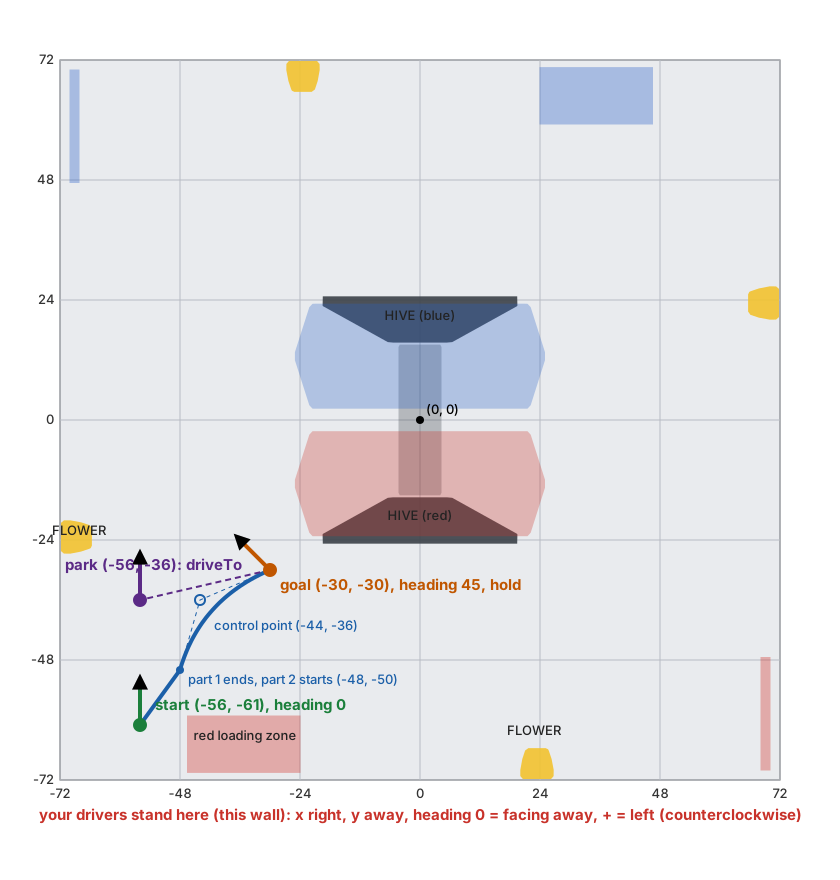
Plan your own path on the field map the same way: check that no part goes through a field element. A curve bulges toward its control point, so check the bulge too.
Or draw it: the Pedro Path Builder (a web page, no
install) shows the BIOBUZZ field like this map. Tap to add parts and drag the points. It draws the
18 x 18 in robot along the path and marks in red where it hits a field element or a wall. Then it
writes the PedroPath code for you to copy. You can also paste your path into it to change it.
6. Try it in the simulator first
Section titled “6. Try it in the simulator first”The simulator runs Pedro like the real robot. It is the safe place to find a path that hits a wall.
The example first. From the ftc-helper-lib folder, as in lesson 7 but with the Pedro robot:
./gradlew :sim:fromRobot -PteamCode=none -ProbotClass=com.crossbotics.ftchelper.examples.pedrobot.Robot -Pout=build/pedrobot.properties./gradlew :sim:run -PteamCode=none -Probot=build/pedrobot.propertiesOpen http://localhost:8780, choose “Pedro Bot Curve to the Goal”, choose RED in the INIT menu, INIT, START.
What you should see: the robot drives a short straight line, then curves to the goal without
stopping, turning to 45 degrees. It stays still there for half a second (the Driver Station shows
Path: holding the end), then drives to park. At the end the report says done for every step.
Look at the path lines on the field map (Control Hub, Robot tab) or in the 3D view:
- Orange, dashed: the plan, the path Pedro drives. It shows as soon as the
followstep starts. - Green: the trail, where the robot really went.
Here the two lines lie on top of each other: the robot drove the plan.
Check your own path this way. Before you run it, look at the orange line: does it cross a field
element? The robot is wider than the line, so keep half its width (9 in for an 18 in robot) clear on
each side. Then run it. Where the green line leaves the orange one, something went wrong: the robot hit
something (it turns red), or it went too fast to turn or brake in time. Fix the path (move a control
point, or slow that part with maxSpeed(0.5)), press Clear lines, and run it again.
Your own robot. From the ftc-helper-lib folder:
./gradlew :sim:fromRobot -PteamCode=../TeamCode./gradlew :sim:run -PteamCode=../TeamCodeChoose your autonomous, INIT, START, and read the report at the end. (The example has @Disabled
so it does not show up on your real robot’s list; the simulator shows it anyway. Your own autonomous
must not have @Disabled.)
In the simulator, follow runs even when Tunables.Odometry.checked is false. On the real robot it
is skipped until then (lesson 7).
7. Tune Pedro on the robot
Section titled “7. Tune Pedro on the robot”Pedro needs to measure your robot: its top speed, how far it slides when it brakes, and how hard to correct. Pedro’s Foresight tuner does this for you. It drives the robot by itself, so you need clear floor and a person ready at the Driver Station to stop it.
Before you start: lesson 7 is done (the odometry is checked). Use a charged battery.
-
Add Pedro’s tuning library. Open
build.dependencies.gradle. It is in the project folder, next tosettings.gradle. It has arepositories { ... }block and adependencies { ... }block. Add one line to each (keep the lines that are already there):repositories {// ...the lines already here...maven { url 'https://repo.dairy.foundation/releases/' }}dependencies {// ...the lines already here...implementation 'com.pedropathing:tuning:1.0.1'}Sync again.
-
Copy Pedro’s tuner files. From Pedro’s Quickstart, folder
TeamCode/src/main/java/org/firstinspires/ftc/teamcode/pedro, copy theproceduresfolder andTuning.javainto a newpedrofolder in your TeamCode. To make the folder in Android Studio: right-click theteamcodefolder (the one withRobot.java), New > Package, typepedro. Pedro’s files already start withpackage org.firstinspires.ftc.teamcode.pedro...: if your TeamCode uses that standard package, they fit as they are. -
Point the tuner at your robot.
Tuning.javais empty. Make it this (fix theRobotimport if yourRobot.javais in another package):package org.firstinspires.ftc.teamcode.pedro; // the folder you just madeimport com.crossbotics.ftchelper.pedro.PedroTuning;import com.pedropathing.tuning.autotune.Procedure;import com.pedropathing.tuning.autotune.Tuner;import org.firstinspires.ftc.teamcode.Robot;import org.firstinspires.ftc.teamcode.pedro.procedures.ForesightTuner;public class Tuning {@Tunerpublic static Procedure foresightTuner() {return new ForesightTuner(PedroTuning.localizer(Robot::new), PedroTuning.drivetrain(Robot::new));}}New Java here:
Robot::newmeans “make a new Robot” (the tuner makes one when it starts).@Tunertells Pedro’s web page to list this procedure.The
import org.firstinspires.ftc.teamcode.Robot;line must name yourRobot.java: its folder (from its first line) plus.Robot.What this does: the tuner uses your own
drive(...)andodometry(...)lines, so it measures the robot the same way the autonomous drives it. -
Run it. Send the code to the robot. Connect the laptop to the robot’s WiFi and open http://192.168.43.1:10158 in a browser. Choose Foresight Procedure and follow the page. It drives forward, sideways, brakes and turns, many times, at full power (the PRACTICE limit does not work here). Keep clear of the robot, and keep a hand on STOP.
-
Copy the numbers. At the end, the page shows a Java tab with lines like
c.maxAchievableForwardVelocity.set(68.4);. In yourPedroConstants.java, replace everyc.something.set(...);line (the lines betweenc -> {and});) with the lines from the Java tab. Keep the first and last lines of the file as they are. Copy them into the file every time: the tuner does not change your code. -
Send the code again.
-
Before an event, take the tuner out. Pedro’s tuner runs a web page on the robot, and this season’s rule R704.D bans tools like that at events (like FTC Dashboard). Comment out the
tuningline inbuild.dependencies.gradle(put//in front of it), moveTuning.javaand theproceduresfolder out of TeamCode, then build and install again. Your paths still work: they only needPedroConstants. Put them back after the event to tune again.
8. The first real run
Section titled “8. The first real run”- Optional but useful: Pedro’s own Tests procedure (its Line and Curve tests) checks the
numbers before your autonomous does. Add it to
Tuning.javathe same way, from Pedro’s testing page. - Make the path short: one straight
PedroPath.line(...)of about 24 in, in open floor. - Use the PRACTICE profile: the wheels get at most
practiceMaxPower(0.6). - Put the robot on the start spot, facing the start heading. INIT, then START. Hand on STOP.
- Watch: it drives the line and stops near the end. Pedro calls it done within about 2.5 in and 11.25 degrees (how to make that tighter).
- Then try your real path, still in PRACTICE. Then COMPETITION.
If it goes the wrong way, press STOP. Then check the table below.
If something goes wrong
Section titled “If something goes wrong”| What you see | What to do |
|---|---|
Pedro or PedroPath is red in Android Studio |
section 3, then Sync |
INIT stops: follower(...) needs an odometry(...) line too |
the follower line needs the odometry line above it |
INIT stops: Pedro.follower needs a mecanum drive(...) line |
Pedro needs mecanum. On a tank drive, use turnTo and move |
Every follow says skipped in the report |
Tunables.Odometry.checked is false: finish lesson 7 |
| It overshoots and comes back, or shakes | PedroConstants still has the sample numbers: section 7 |
| It drives the wrong way at once | STOP. Run lesson 7’s Odometry Tuner again; check the motor directions (lesson 2) |
| It stops a little short of the end | normal: Pedro is done within 2.5 in. To change it, see the module page |
The report says STALLED |
the robot was stuck (against a wall or a robot). The next steps still run |
The report says timed out |
the path took more than 10 s: make it shorter, or give follow more seconds: .follow("To the goal", TO_GOAL, 15) |
| It is slow | PRACTICE uses practiceMaxPower. COMPETITION uses maxPower |
| The tuner’s page does not open | the laptop must be on the robot’s WiFi; check the address |
| The tuner does not compile | step 1 of section 7 (both lines), then Sync |
The main track is lessons 1 to 6, plus the lessons your robot needs. Is your robot a shooter? Next: Lesson 9: A shooter, a camera and a turret.
- The pedro module: every option, how it works inside, the escape hatches.
- Pedro Pathing’s own docs: more about tuning and what Foresight does.
- The autonomous builder: everything an autonomous can do.